How your steps reach Walking RPG
Your device → Companion app → Apple Health → Walking RPG
Your companion app needs permission to write steps to Apple Health, and Walking RPG needs permission to read them.
Check your device’s companion app
1. Sync your device with its companion app
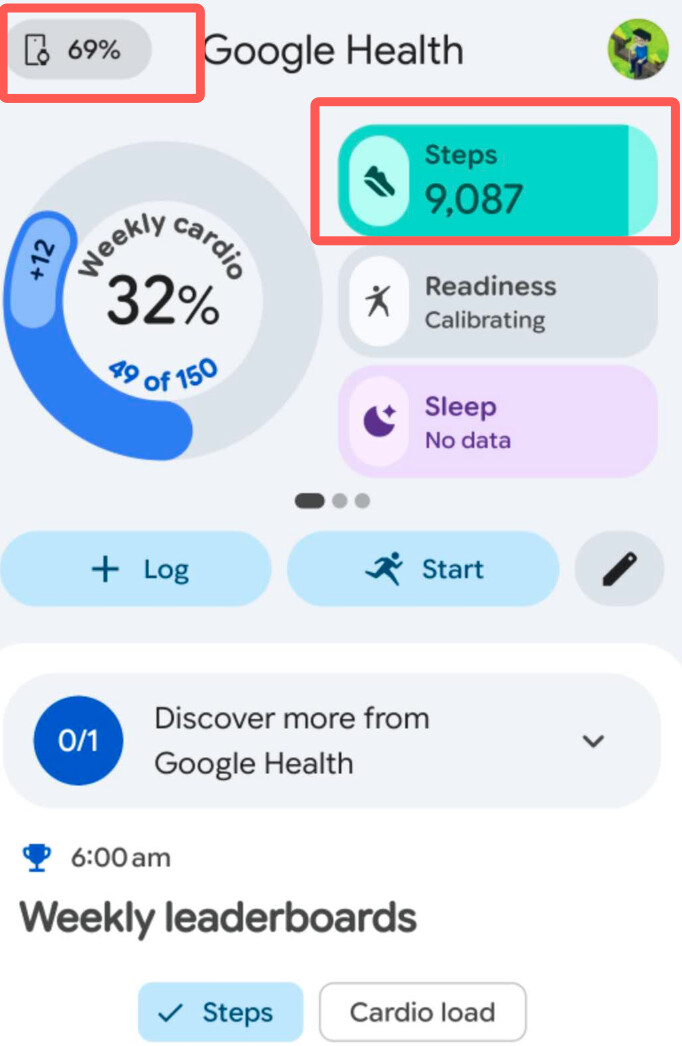
Make sure your smartwatch or fitness tracker has synced with its companion app. The example below shows a Fitbit device syncing with Google Health.
2. Sync your companion app with the Health app
Once your device has synced, your companion app should sync your steps with Apple Health automatically.
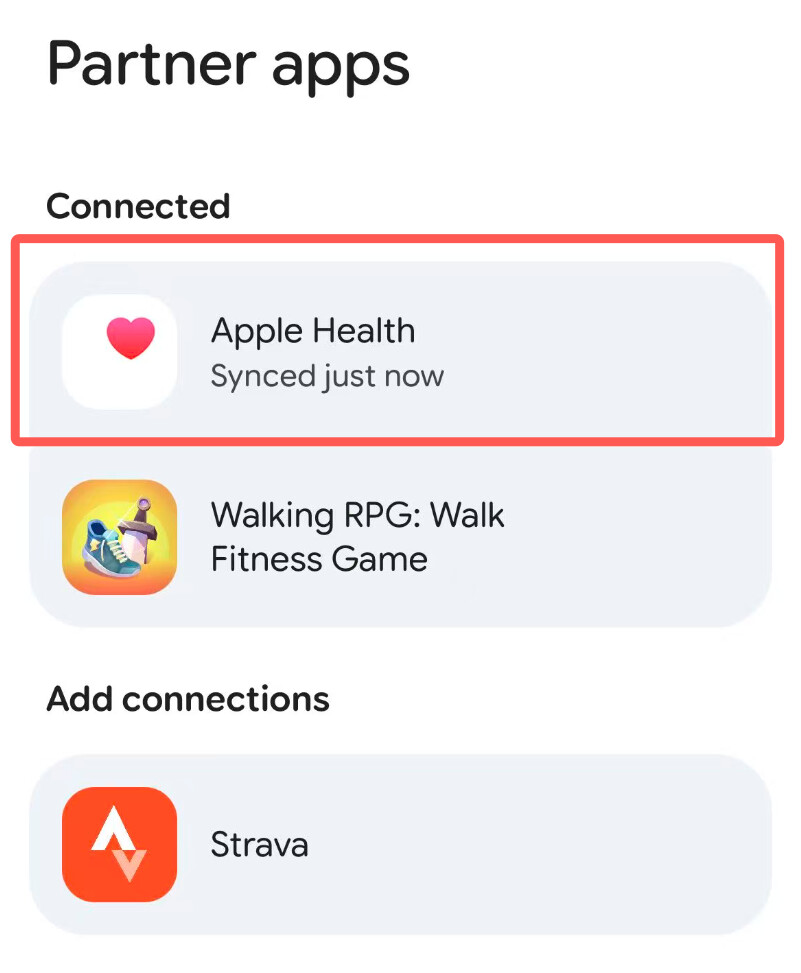
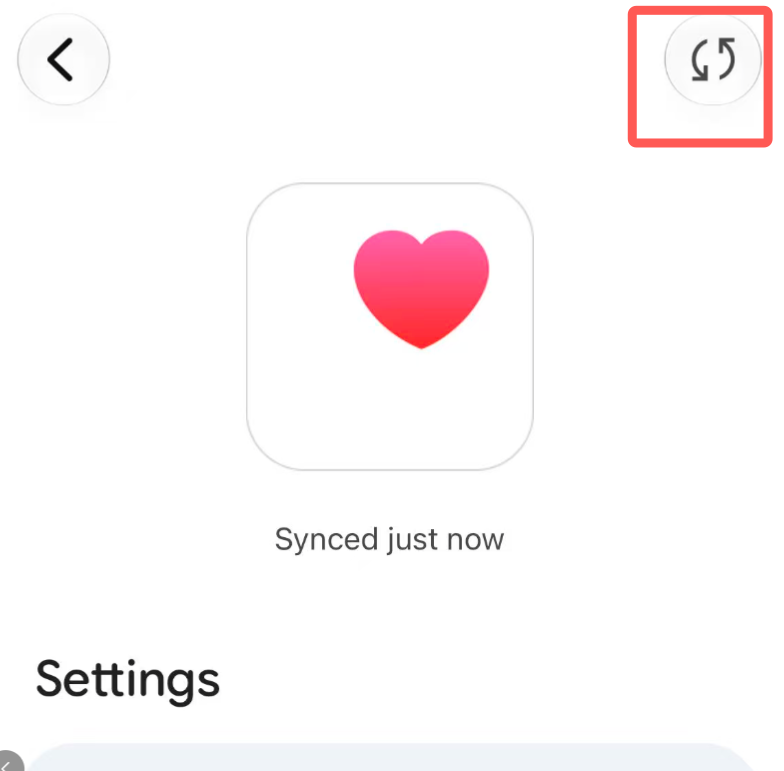
In Google Health, go to Profile → Partner apps and check that Apple Health is connected. If the status does not say Synced just now, tap Apple Health, then tap the sync button in the top-right corner to sync manually.
Check the Health app (Apple Health)
1. Check app connections and permissions
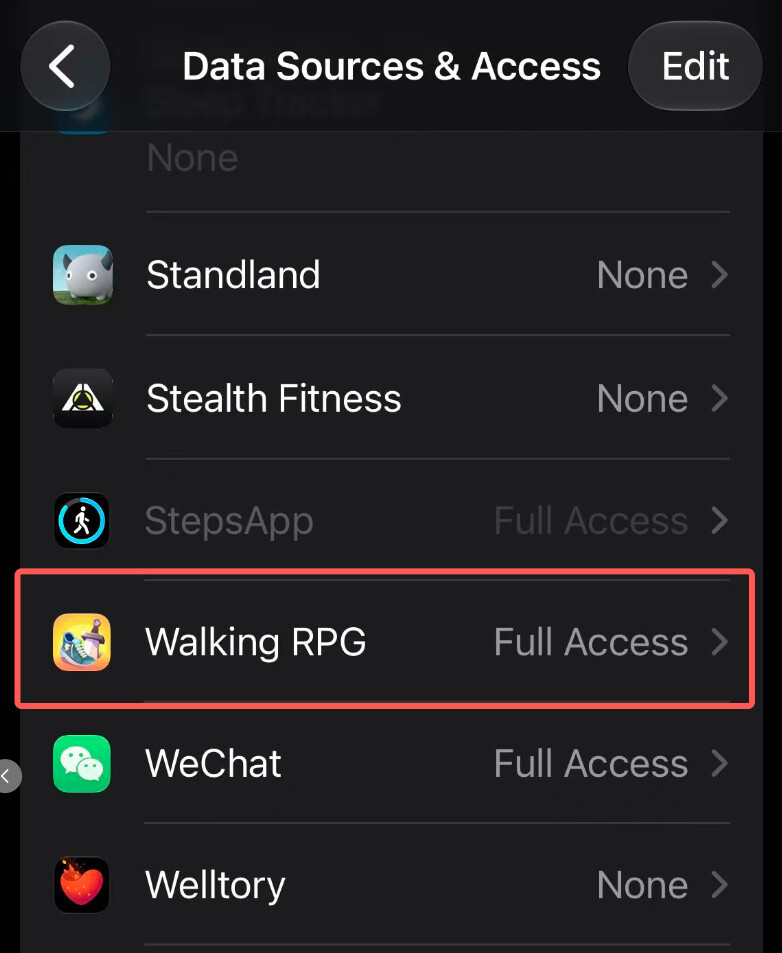
Allow Walking RPG to read your steps. Open Health → Steps → Data Sources & Access and make sure Walking RPG is listed under Apps Allowed to Read Data with either Limited Access or Full Access.
Allow your device’s companion app to write steps. Open Health, tap your profile picture → Apps → your companion app, and allow it to write Steps data.
2. Verify step tracking
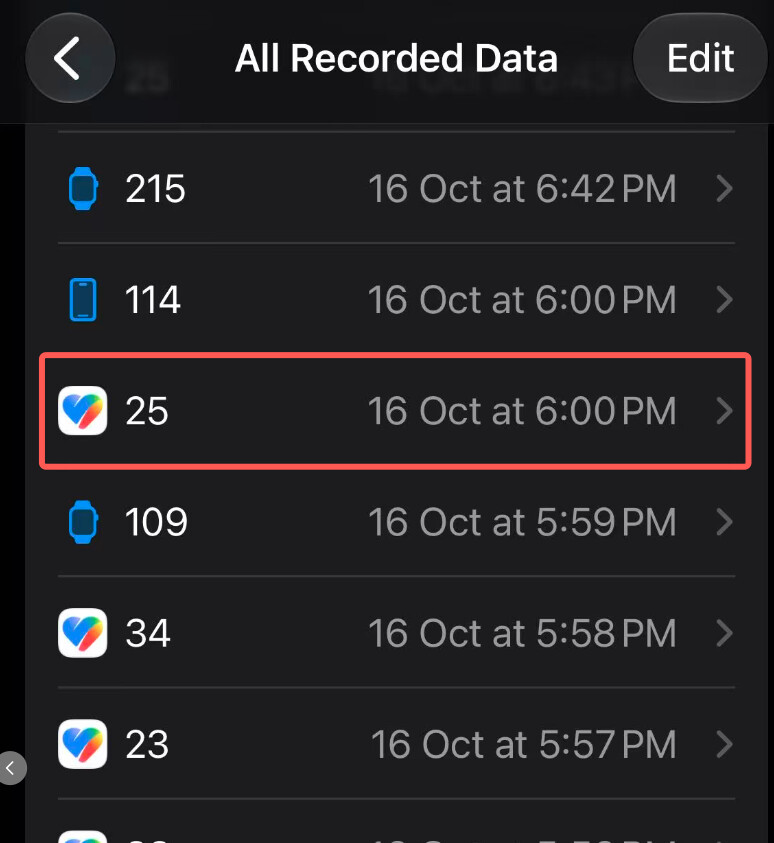
Open Health → Steps → Show All Data and check that today’s step entries appear next to your companion app’s icon.
Supported apps and devices
Walking RPG supports the apps and devices listed below. Your companion app must also support sharing step data with Apple Health on iOS. Availability depends on the app and device. Let us know if you’d like us to support additional devices.
- Google Health (Fitbit devices)
- Samsung Health (Samsung devices)
- Garmin Connect (Garmin devices)
- Zepp (Amazfit and compatible Xiaomi devices)
- HUAWEI Health (HUAWEI devices)
- OHealth (OPPO devices)
- COROS
- Polar Flow (Polar devices)
- Suunto
- Withings
- WHOOP
- Oura
- realme Link (realme devices)
For setup instructions, see our setup guide.