1. Open Walking RPG’s device settings
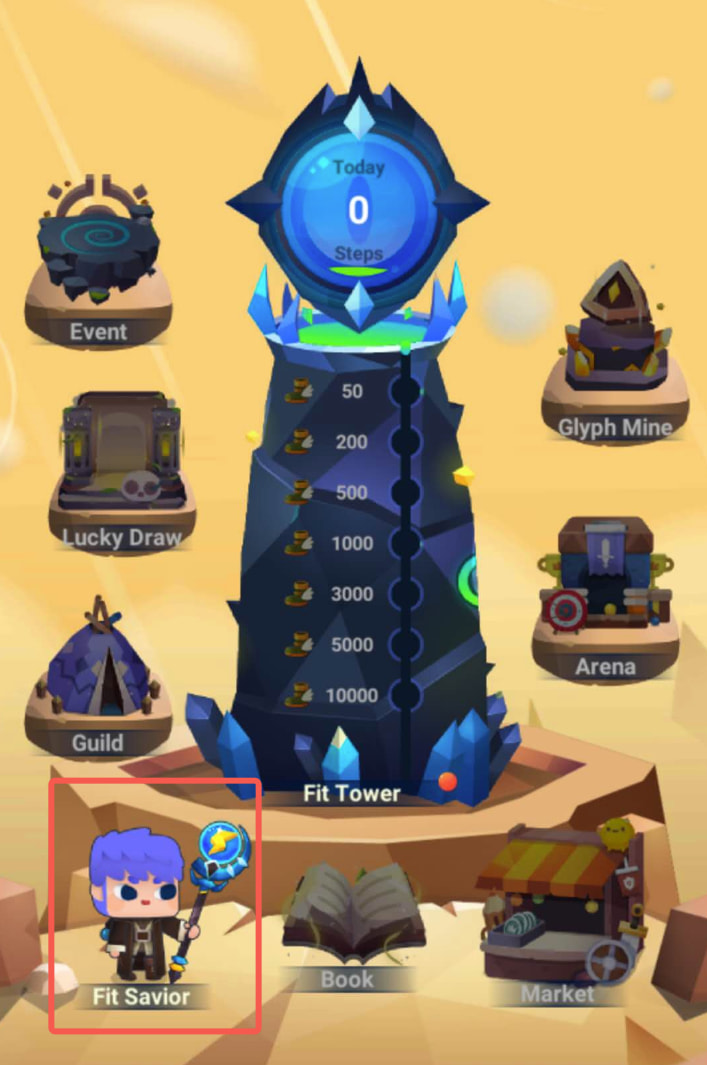
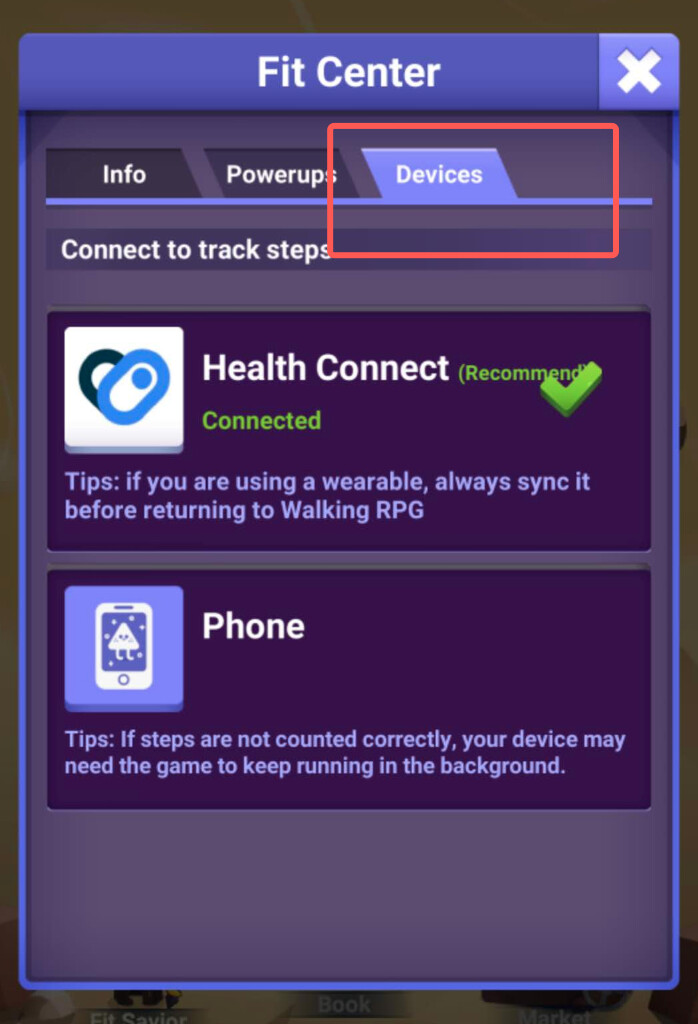
In Walking RPG, go to Fit Savior → Devices to choose your step-tracking method.
Changing tracking methods: A new method starts tracking the next day. You can switch back to your previous method and resume tracking at any time before midnight.
2. Select Health Connect and grant permissions
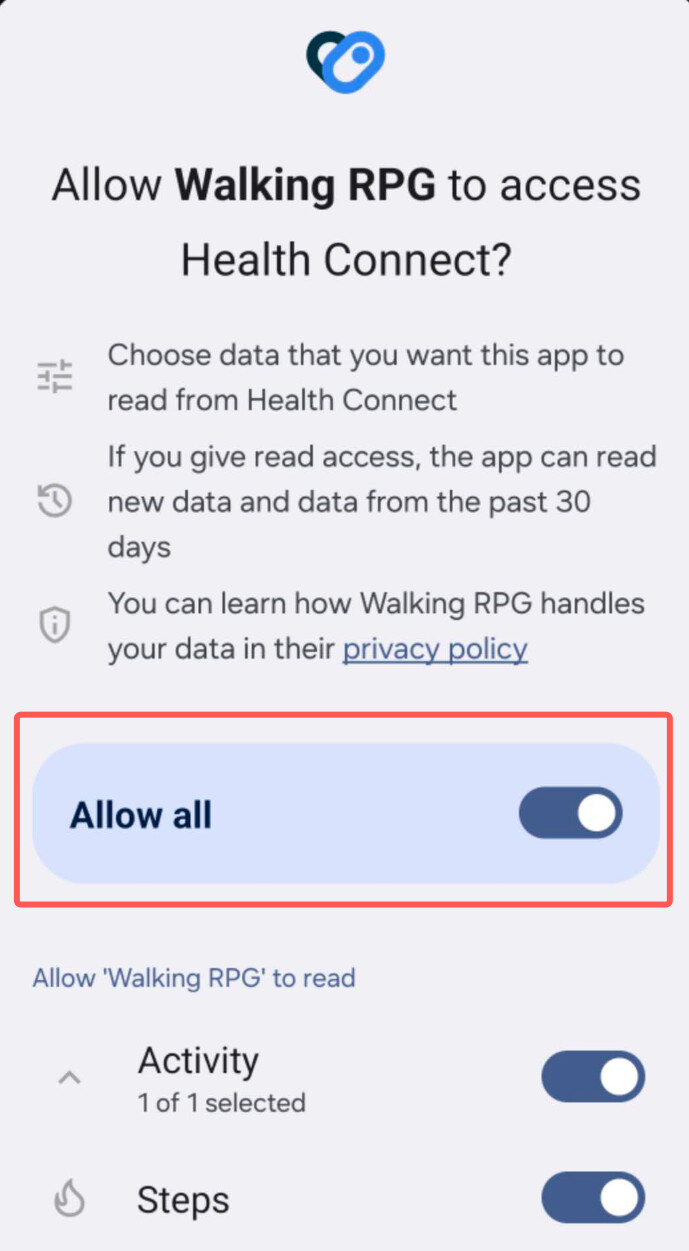
Select Health Connect, then allow Walking RPG to read your Steps data when prompted.
3. Sync your device’s companion app with Health Connect
First, sync your smartwatch or fitness tracker with its companion app. In the companion app, enable sharing with Health Connect and allow it to write steps. Walking RPG needs permission to read steps from Health Connect.
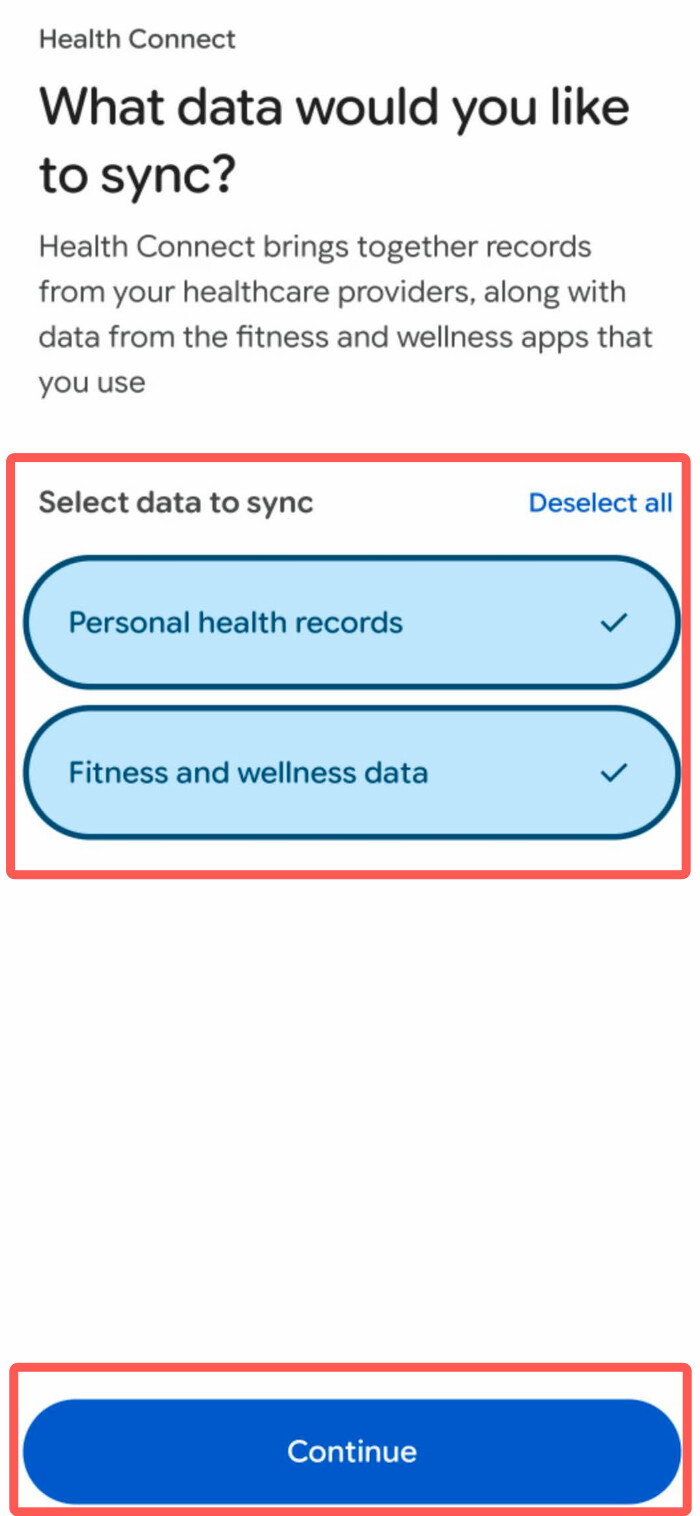
The screenshots below show the connection setup in Google Health. Menus and available permissions may vary by app and version.
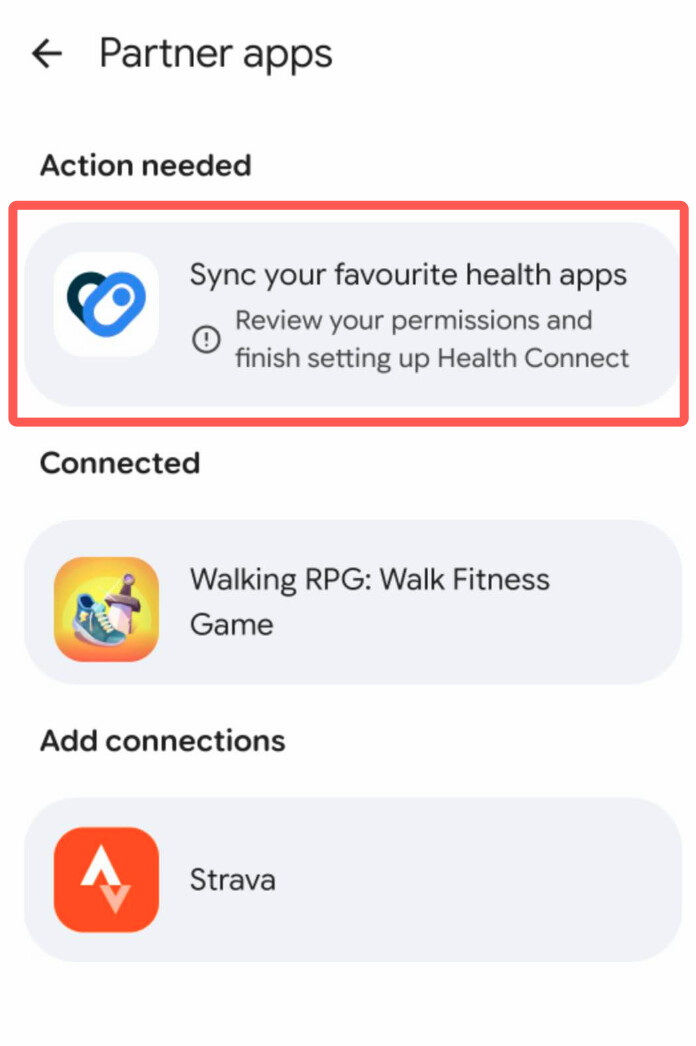
For step tracking, select Fitness and wellness data, then follow the prompts to share Steps. You don’t need to share personal health records to track steps.
If your steps aren’t being tracked correctly, see our troubleshooting guide.