1. Sync your device
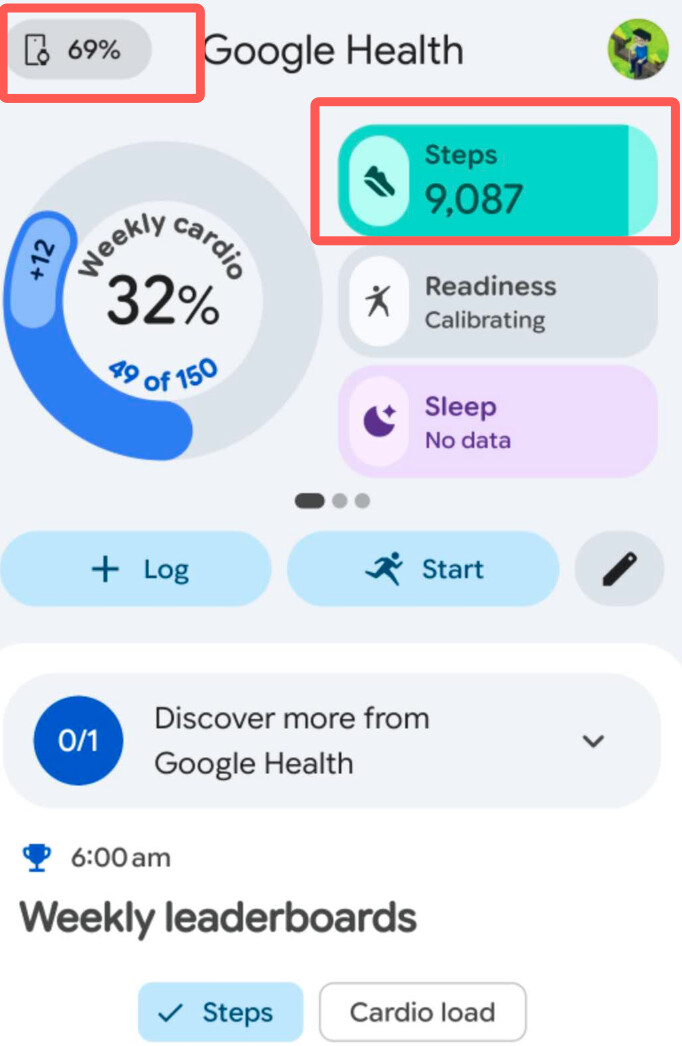
If you use a smartwatch or fitness tracker to track your steps, make sure it has synced with its companion app. The example below shows a Fitbit device syncing with Google Health.
2. Connect “Walking RPG” and your device’s companion app
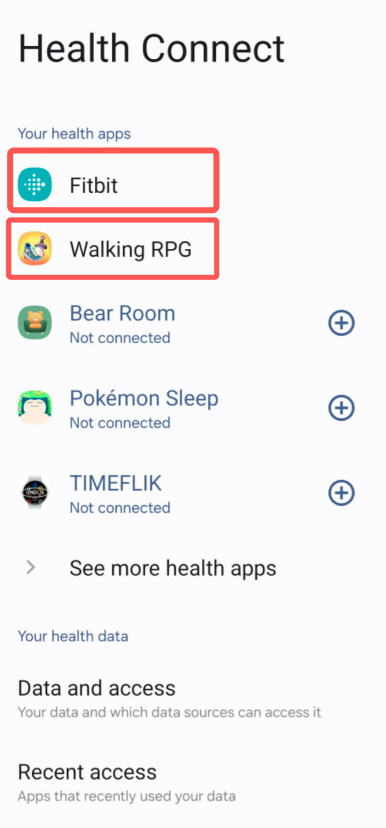
Go to Settings → Health Connect and make sure both Walking RPG and your device’s companion app are listed under Your health apps. The screenshot below shows Fitbit as the companion app.
3. Verify step tracking
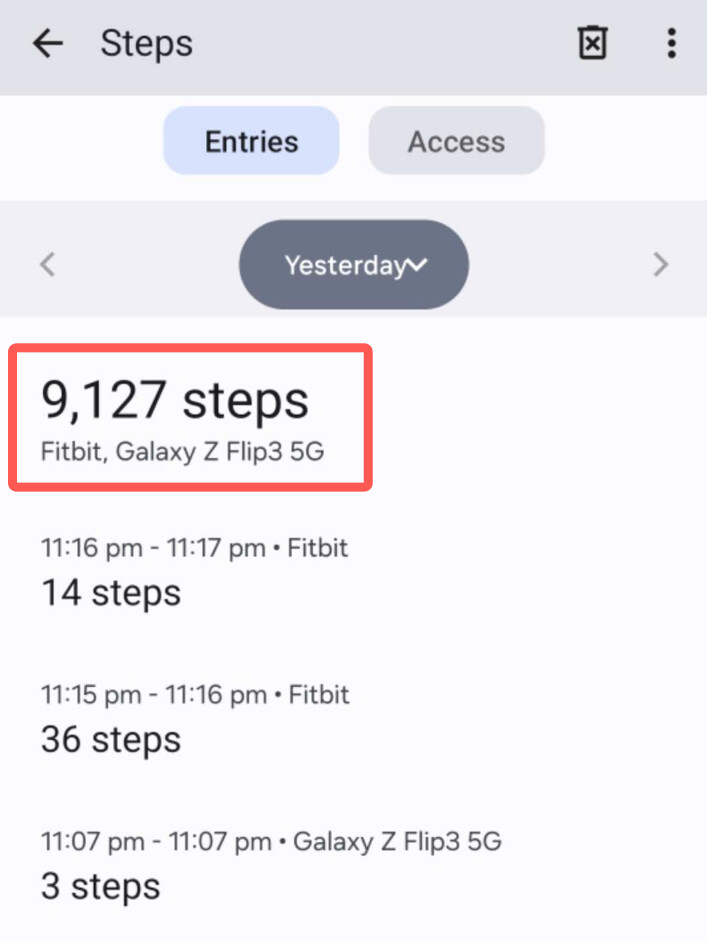
Go to Health Connect → Data and access → Steps and check that your step data appears there.
4. Check whether your device is supported
We currently support a limited range of apps and devices through Health Connect, as listed below. Let us know if you’d like us to support additional devices.
- Google Health (Google Fit, Pixel Watch)
- Samsung Health (Samsung devices)
- Garmin Connect (Garmin devices)
- Zepp (Amazfit devices, MI devices)
- HUAWEI Health (HUAWEI devices)
- OHealth (OPPO devices)
- COROS
- Polar Flow (Polar devices)
- Suunto
- Withings
- WHOOP
- Oura
- realme Link (realme devices)
For help connecting the game to Health Connect, see our setup guide: