1. Open the device settings
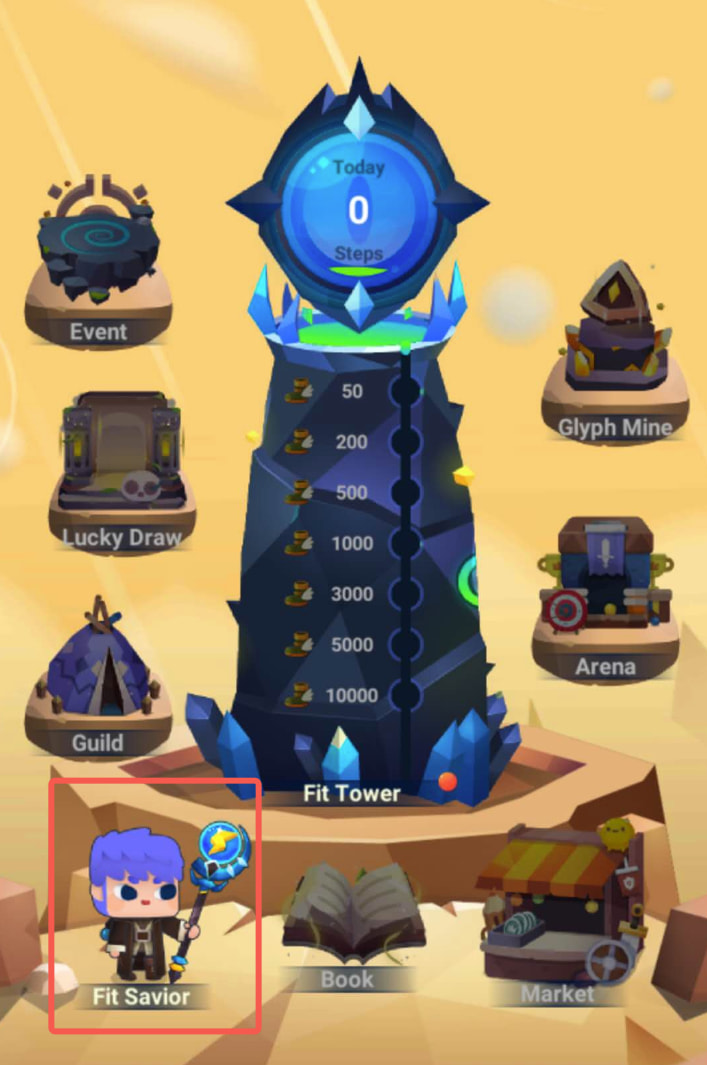
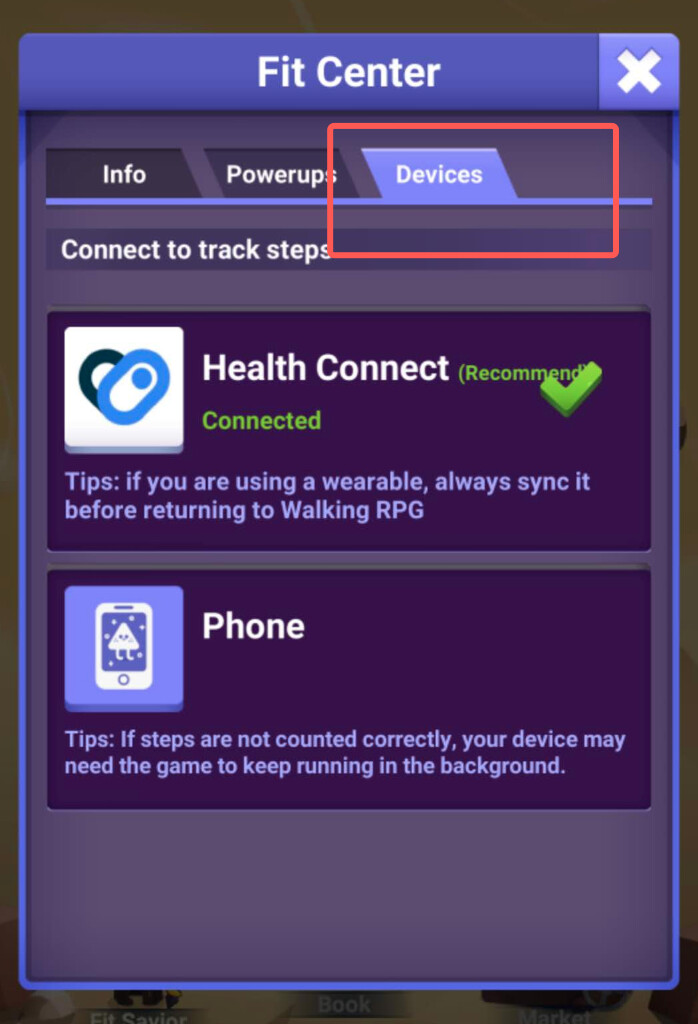
In Walking RPG, go to Fit Savior → Devices to change your step-tracking method. If you select a new method, you’ll need to wait until the next day for it to start tracking. You can switch back to your previous method and resume tracking at any time before midnight.
2. Select Phone and grant permission
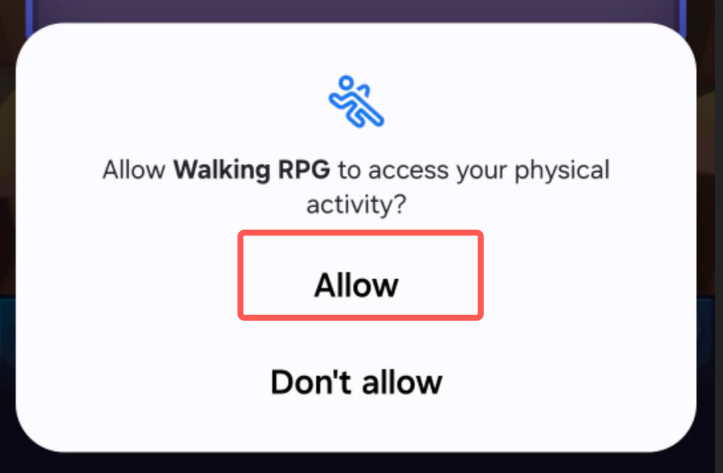
Select Phone, then tap Allow when Walking RPG asks for permission to access your physical activity.
3. Start tracking your steps
Most phones don’t need any additional setup. Walking RPG should track your steps once the selected method becomes active.
If your steps aren’t being tracked correctly, see our troubleshooting guide.